

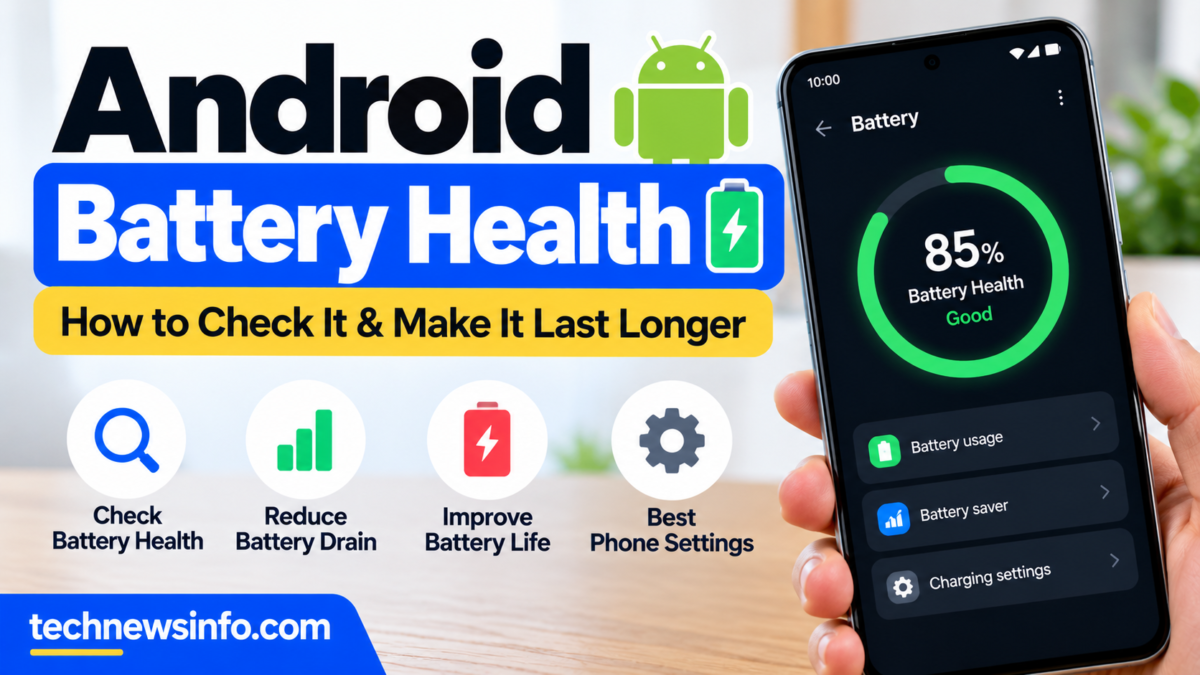
Your Android phone may feel fast when you first buy it, but battery performance can change over time.
If the battery seems to drain faster than before, the problem may not always be the charger or the latest app you installed. Battery ageing, display settings, background activity, network conditions and charging habits can all affect battery life.
The good news is that Android users have several ways to understand and improve battery performance.
What Is Battery Health?
Battery health describes the condition and remaining capacity of a rechargeable battery compared with when it was new.
A phone battery naturally loses capacity as it goes through charging cycles and ages.
This means that a phone that once lasted an entire day may eventually require charging more frequently.
Why Does Android Battery Drain Quickly?
Several factors can contribute to battery drain.
Screen Brightness
The display can consume a significant amount of power.
Keeping brightness unnecessarily high can reduce battery life.
Using adaptive brightness or manually lowering brightness when possible can help.
Background Apps
Some applications continue working even when you are not actively using them.
Social media, navigation, streaming and communication applications can perform background tasks.
Check your phone’s battery settings to see which apps are consuming the most power.
Poor Network Signal
A phone may use more power when it constantly searches for a stronger cellular signal.
This can be particularly noticeable in areas with weak coverage.
Location Services
Location-based applications can use additional battery power, especially when they frequently request location information.
Review which apps actually need location access.
How to Check Battery Usage
Most modern Android phones provide battery information through Settings.
The exact menu varies by manufacturer and Android version, but you can usually find it under a section such as:
Settings → Battery
Look for options such as:
- Battery usage
- Battery activity
- Battery diagnostics
- Battery optimisation
The screen may show which applications have consumed the most power.
How to Make an Android Battery Last Longer
1. Reduce Screen Brightness
Use adaptive brightness or lower the brightness manually when practical.
2. Use Battery Saver
Battery Saver can reduce background activity and other power-consuming processes.
It is especially useful when you need the phone to remain available for several more hours.
3. Remove Unnecessary Apps
If you no longer use an application, uninstall it.
Fewer applications can mean fewer background processes and notifications.
4. Keep Software Updated
System updates can sometimes include battery-performance improvements and bug fixes.
However, after a major update, temporary increased battery consumption can occur while the device completes background processes.
5. Check Battery-Hungry Apps
Look at your battery settings regularly.
If one application consumes an unusually large amount of power, investigate whether you actually need its background activity.
Should You Charge Your Phone Overnight?
Modern phones include charging-management features designed to reduce battery stress.
However, charging behaviour varies by device.
If your phone includes adaptive or optimised charging, consider enabling it.
The more important point is to avoid exposing the device to excessive heat while charging.
Heat Is the Battery’s Enemy
High temperatures can accelerate battery ageing.
Avoid leaving your phone in direct sunlight, inside a hot vehicle or under heavy thermal load while charging.
If the device becomes unusually hot, investigate the cause rather than continuing to use it normally.
When Should You Replace the Battery?
Consider professional battery replacement when the battery:
- Drains unusually quickly
- Shuts down unexpectedly
- Shows significant capacity loss
- Becomes swollen
- Gets abnormally hot
A swollen battery is a safety issue and should not be ignored.
Final Thoughts
Battery ageing is normal, but good habits can help you get more useful life from your Android phone.
Start by checking battery usage, reducing unnecessary background activity, managing screen brightness and keeping the device away from excessive heat.
If the battery has physically deteriorated, software settings cannot restore its original capacity. At that point, professional replacement may be the practical solution.